Select a design in scene

Select a design in scene

In this article, you will learn how to select a design in EvoFX's scene.

Before you begin

To learn how to create a scene in EvoFX broadcast graphics platform studio, refer to this article.

Select a design in scene

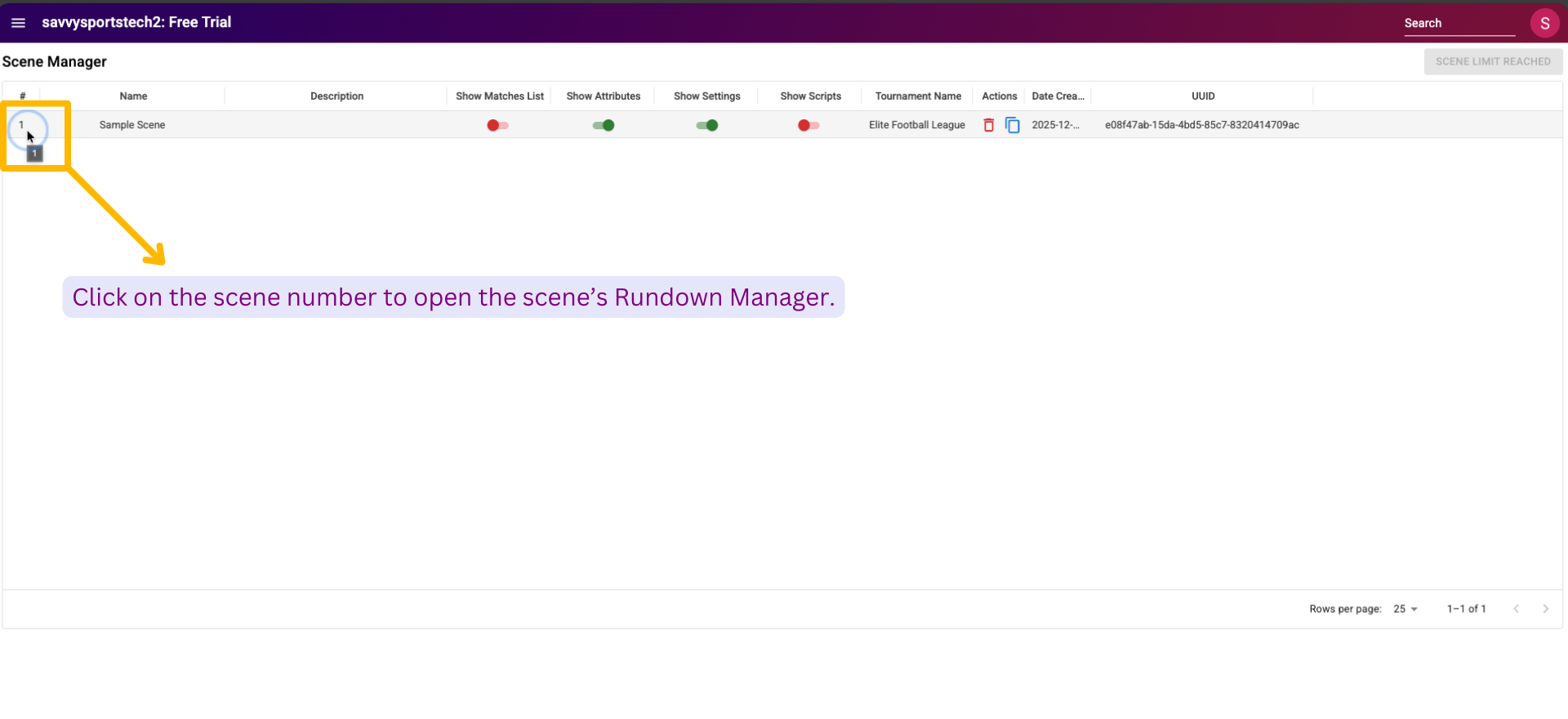
Open the scene's Rundown Manager by clicking on its number.
Once clicked, the scene's Rundown Manager will open. Click the "SELECT DESIGN" button to view the pre-existing graphic designs in EvoFX.


Upon clicking, a dialog box named "Select Design" will open. Scroll through the dialog box to browse designs, or enter the design name in this input field to access it quickly.


After browsing through the designs, select the desired design by clicking on it.


After selecting your design, you can name it by entering the name in this input field on the left. Then, click the "SUBMIT" button on the middle once the design selection and naming are complete.


Upon clicking, the scene's design will be created with the name you selected. A green success message will appear at the bottom right of the page, indicating that the scene's design has been created successfully.


    • Related Articles

    • Fire an SVG graphic live from scene studio

      In this article, you will learn how to fire an SVG graphic live from the scene studio. Before you begin To learn how to create a scene in EvoFX broadcast graphics platform studio, refer to this article. To learn how to select an SVG design in EvoFX's ...
    • Create scene

      A scene is where you can import, modify and manage different graphics in EvoFX broadcast graphics platform studio. In this article, you will learn how to create a scene in EvoFX. Before you begin To learn how to navigate from home page to ...
    • Open scene studio

      In this article, you will learn how to open the scene studio. Before you begin To learn how to create a scene in EvoFX broadcast graphics platform studio, refer to this article. Open scene studio After opening the scene's Rundown Manager, click the ...
    • Select match

      In this article, you will learn how to select a match in the Cricket studio of the EvoFX broadcast graphics platform. Before you begin Before you can choose different graphics from the "CONTROLS" column for a match, it's necessary to first select the ...
    • Creating and converting a text-only SVG lower third into an EVOFX graphic

      You can create or design SVGs using tools such as Adobe Illustrator, which may take time depending on your level of expertise. To save time and with little to no experience using design tools, you can also use AI tools such as ChatGPT or Google ...