Create scene

Create scene

A scene is where you can import, modify and manage different graphics in EvoFX broadcast graphics platform studio. In this article, you will learn how to create a scene in EvoFX.

Before you begin

To learn how to navigate from home page to organisation level to folder level in SPAN sports performance analysis platform, refer to this article.

Create scene

On the organisation’s home page, click the "Scenes" button in the left panel to access the Scenes page.


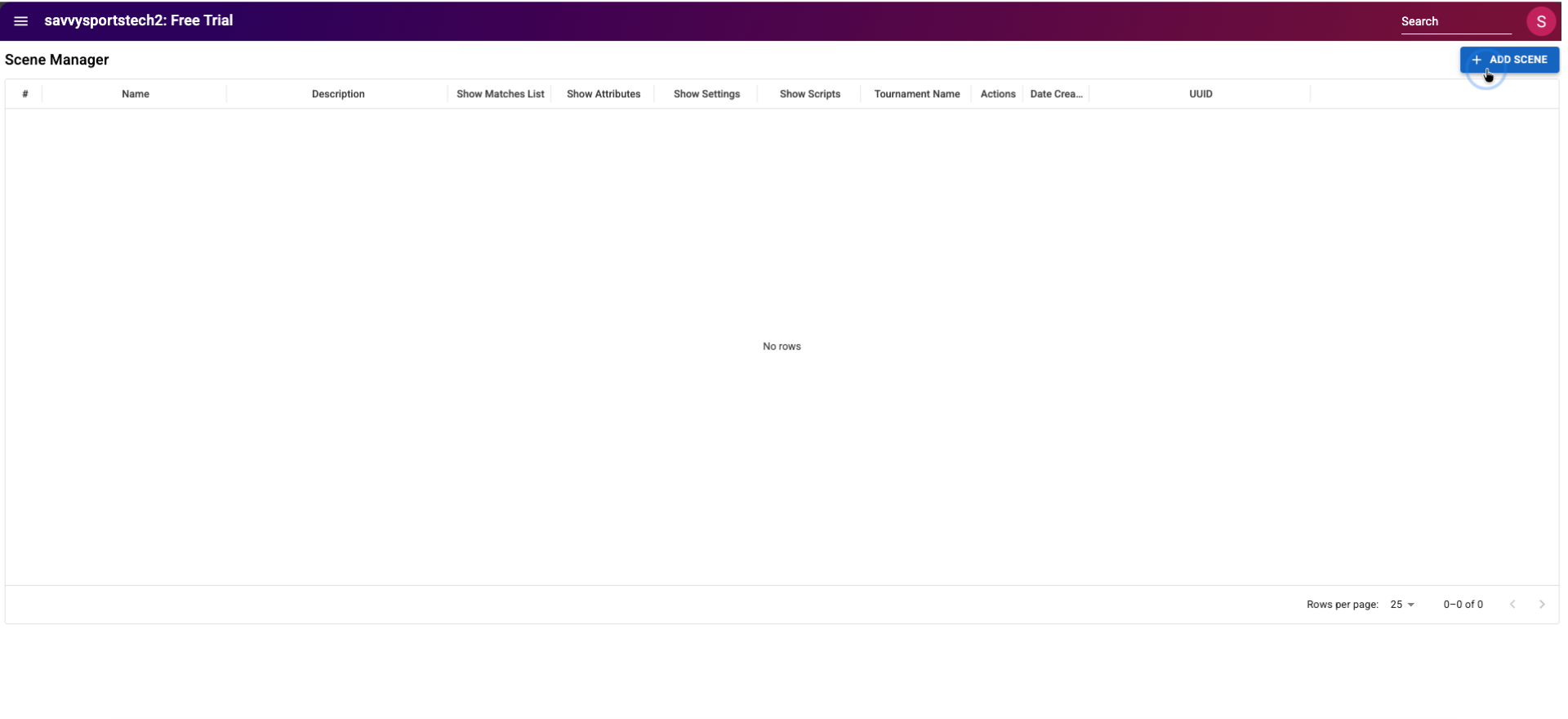
Upon clicking, it will open the "Scene Manager" page, where you can see all previously created scenes. If you haven't created any scenes, it will appear empty, as shown below. Click on the "ADD SCENE" button located at the top right of the page to create a new scene.
Once clicked, a dialog box titled "Create New Scene" will open, where you need to enter the scene name and assign it to an existing tournament that you have previously created in SPAN. The scene description is optional. After entering the scene name and assigning the tournament, click the "CREATE SCENE" button in the dialog box to create the scene.
Notes
Note: To learn how to create a tournament in the tournament management, refer to this article.


Upon clicking, the scene will be created with the name you selected. A green success message will appear at the bottom right of the page, indicating that the scene has been created successfully.


    • Related Articles

    • Open scene studio

      In this article, you will learn how to open the scene studio. Before you begin To learn how to create a scene in EvoFX broadcast graphics platform studio, refer to this article. Open scene studio After opening the scene's Rundown Manager, click the ...
    • Select a design in scene

      In this article, you will learn how to select a design in EvoFX's scene. Before you begin To learn how to create a scene in EvoFX broadcast graphics platform studio, refer to this article. Select a design in scene Open the scene's Rundown Manager by ...
    • Fire an SVG graphic live from scene studio

      In this article, you will learn how to fire an SVG graphic live from the scene studio. Before you begin To learn how to create a scene in EvoFX broadcast graphics platform studio, refer to this article. To learn how to open scene studio, refer to ...
    • Creating and converting a text-only SVG lower third into an EVOFX graphic

      You can create or design SVGs using tools such as Adobe Illustrator, which may take time depending on your level of expertise. To save time and with little to no experience using design tools, you can also use AI tools such as ChatGPT or Google ...
    • Configuring EvoFX to integrate scoring from the Squore app

      In this article, you will learn how to configure the EvoFX to integrate scoring data from the Squore app. Before you begin To learn how to transition a graphic to live in EvoFX broadcast graphics platform studio, refer to this article. Configuring ...