Creating and converting a text-and-image SVG lower-third with animations into an EvoFX graphic
You can create or design SVGs using tools such as Adobe Illustrator, which may take time depending on your level of expertise. To save time and with little to no experience using design tools, you can also use AI tools such as ChatGPT or Google Gemini to generate SVG designs based on your requirements. After generating your SVG design, you can quickly convert it into a broadcast-ready graphic in EvoFX. In this article, you will learn how to create and convert a text-and-image SVG lower-third with animations into an EvoFX graphic.
Before you begin
To learn how to create a scene in EvoFX broadcast graphics platform studio, refer to this article.
To learn how to open scene studio, refer to this article.
To learn how to create and convert a text-only SVG lower-third into an EvoFX graphic, refer to this article.
To learn how to create and convert a text-and-image SVG lower-third into an EvoFX graphic, refer to this article.
To learn how to create and convert a text-only SVG lower-third into an EvoFX graphic, refer to this article.
To learn how to create and convert a text-and-image SVG lower-third into an EvoFX graphic, refer to this article.
Creating a text-and-image SVG lower third with animations in ChatGPT
1. Below is the prompt used in ChatGPT to generate a text-and-image SVG lower-third with animations.

Note: While writing a prompt to generate using an AI tool, or while creating in design tools such as Adobe Illustrator (and converting it into an EvoFX graphic), make sure:
a) All text should be written using <text> elements only (do not convert text to paths) so you can customise the text using input fields.
b) The viewBox can be any dimension, but the SVG should not specify height and width, so it can use 100% of the available space defined by the viewBox.
c) Portrait/image must use an <image> with a URL, clipped to a circle, using: preserveAspectRatio="xMidYMid slice" so any photo fits.
a) All text should be written using <text> elements only (do not convert text to paths) so you can customise the text using input fields.
b) The viewBox can be any dimension, but the SVG should not specify height and width, so it can use 100% of the available space defined by the viewBox.
c) Portrait/image must use an <image> with a URL, clipped to a circle, using: preserveAspectRatio="xMidYMid slice" so any photo fits.
2. And the above prompt generated a text-and-image SVG lower-third design with animations, as shown below.
Note: If you are using software such as Adobe Illustrator to design an SVG with text - and plan to convert it into an EvoFX graphic and customise the text, make sure that, while exporting the design, the "Font" option is set to "SVG" and not "Convert to Outlines," as shown below.Note: If you are using software such as Adobe Illustrator to design an SVG with image - and plan to convert it into an EvoFX graphic and customise the image, make sure that, while exporting the design, the "Image" option is set to "Link" and not "Preserve" or "Embed" as shown below.
Converting a text-and-image SVG lower third with animations into an EvoFX graphic
1. Once you design or generate a text-and-image SVG lower-third with animations, you can upload it to SPAN as a public file using the Upload Public Files feature. After uploading the SVG, copy its URL.
Note: To learn how to upload a public SVG file and copy its URL in SPAN, refer to this article.
2. Then, paste the URL into the SVG graphic settings in the scene studio to convert it into an EvoFX graphic.
Note: To learn how to paste the public URL of an SVG file into the scene studio, modify its settings, convert it into an EvoFX graphic, and fire the SVG graphic live from the scene studio, refer to this article.
3. Once the settings are updated, you can fire the graphic live and use the scene studio's live output link for your broadcast by pasting it into broadcast software such as OBS or vMix.
For example,
if your scene studio link is: https://app.banyanboard.com/#/public/scenes/e08f47ab-15da-4bd5-85c7-8320414709ac/studio/
then the live link is: https://app.banyanboard.com/#/public/scenes/e08f47ab-15da-4bd5-85c7-8320414709ac/live/
In other words, replace "studio" with "live" at the end of the URL.
Customising the text and image in a text-and-image SVG lower-third with animations EvoFX graphic
1. In the EvoFX Scene Studio, you can customise a text-and-image SVG lower-third with animations after it has been converted into an EvoFX graphic. Click the “INPUTS” icon for the SVG graphic to open the inputs.
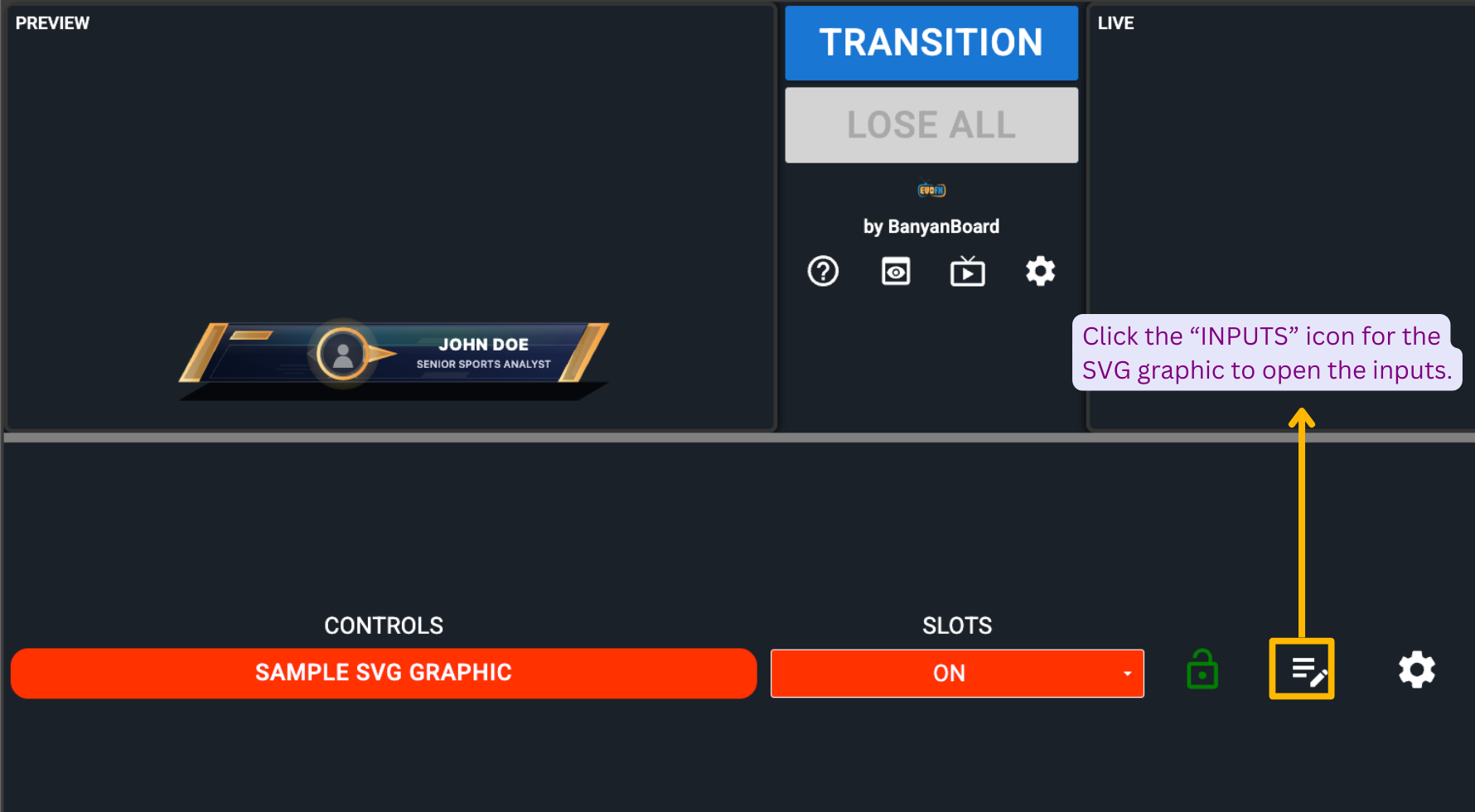
2. Once clicked, a dialog box titled “Inputs for SVG Graphic” will open. Change the image and text in the graphic using the inputs available in the dialog box. To display the image in the graphic, paste the public URL of the image into the input field.
3. Any changes you make in the inputs will quickly reflect in the SVG graphic text, as shown below.
Related Articles
Creating and converting a text-and-image SVG lower third into an EvoFX graphic
You can create or design SVGs using tools such as Adobe Illustrator, which may take time depending on your level of expertise. To save time and with little to no experience using design tools, you can also use AI tools such as ChatGPT or Google ...Creating and converting a text-only SVG lower third into an EvoFX graphic
You can create or design SVGs using tools such as Adobe Illustrator, which may take time depending on your level of expertise. To save time and with little to no experience using design tools, you can also use AI tools such as ChatGPT or Google ...Lower third
In this article, you will learn how to fire an lower third graphic like the below one in EvoFX broadcast graphics platform studio. Before you begin To learn how to select a match in EvoFX studio, refer to this article. Currently, the EvoFX studio ...3D lower third
In this article, you will learn how to fire the 3D lower third graphic like the below one in EvoFX broadcast graphics platform studio. Before you begin To learn how to select a match in EvoFX studio, refer to this article. The 3D lower third graphic ...3D lower third
In this article, you will learn about the 3D lower third graphic, which can be used in multiple sectors like corporate events, sports, and news channels to highlight an issue, important information, or statistics. On 1920x1080 screens, the 3D lower ...